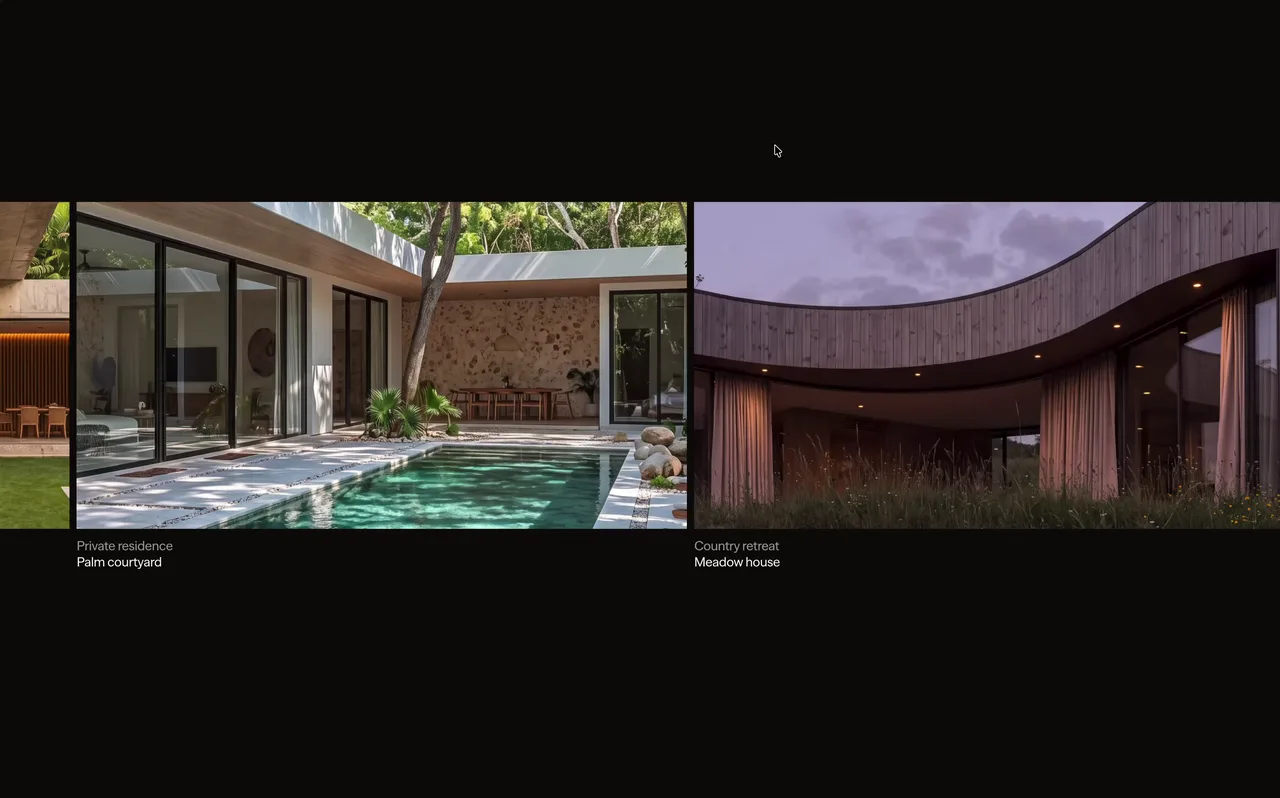
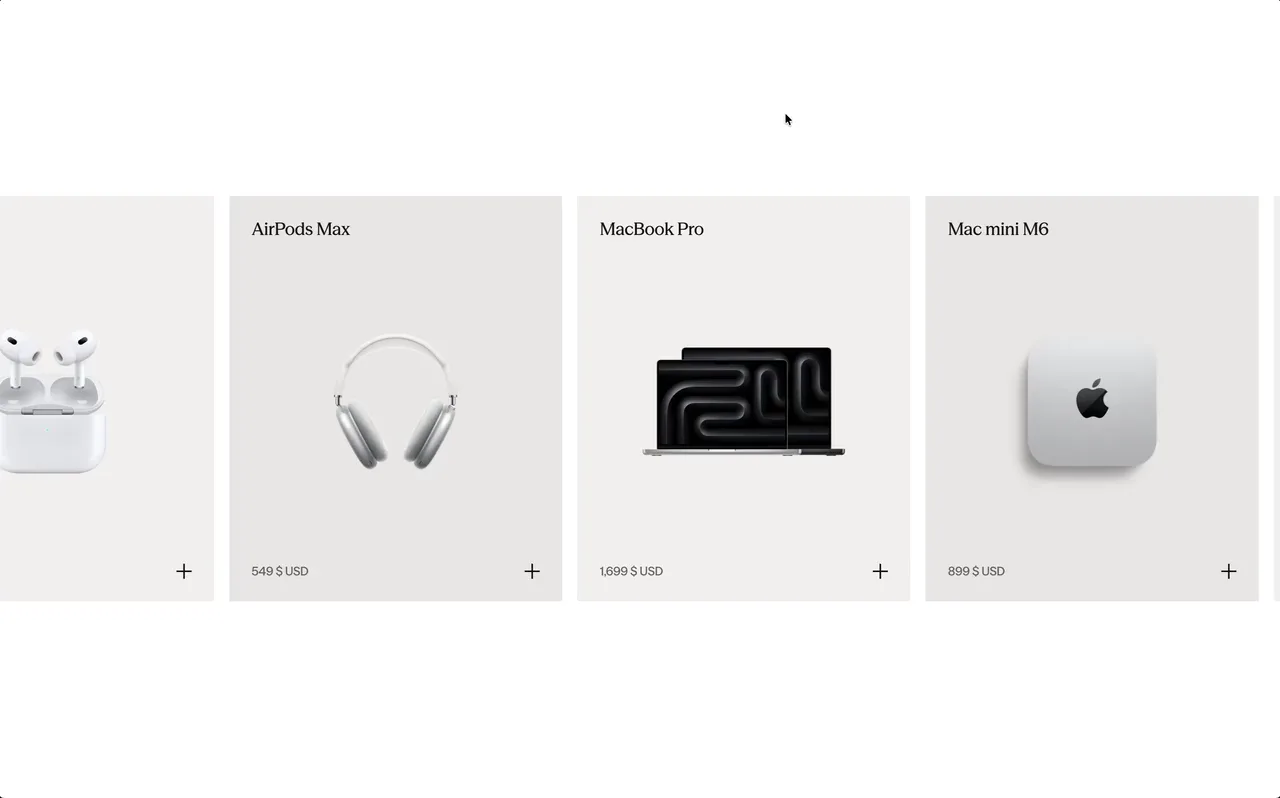
This is Inspo
The best websites, handpicked weekly. Only the exceptional ones make it in.


Everything you need to find better ideas and build websites that stand out.
Go find the details that make your next project stand out. We'll keep adding new ones every week.
Unlock unlimited inspiration for your next project.
The best websites, handpicked weekly. Only the exceptional ones make it in.
Type what you need in your own words. Smart Search will find the best matches for you, or use filters to narrow things down.
Real transitions, buttons, and sections as paste-ready code. The details that make sites unforgettable.
Connect Details to your AI. Find the right inspiration, explore directions, and bring them into your project.
Everything you need to study, build, and ship better websites.
- 10% Invited by · Applied at checkout
Find better ideas, faster.
$12 /mo. $9 /mo.Copy-paste code that makes your site unforgettable.
$25 /mo. $19 /mo.Pay once. Everything, forever.
$490 /one-time Sold outEverything in Max, for your whole team.
$28 /seat/mo. $22 /seat/mo.Need an enterprise plan? Contact us.
Featuring work from the best teams
Featured websites include Apple, Stripe, Linear, Framer, Notion, OpenAI, Shopify, and Exo Ape.
You don’t need more inspiration. You need better inspiration.
Every piece on Details has to earn its place. We handpick the interactions, layouts, animations and details actually worth studying, then organize them so you can find what you need without digging through the noise.
But Details doesn’t stop at inspiration. With the MCP, your AI gets direct access to the library, so you can find references, explore directions and bring those ideas into your own workflow.
And with Max, the Vault gives you carefully crafted interactions and sections you can use directly in your projects.
The goal is simple: better references, better decisions, better work.
It brings the entire Details library directly into your AI workflow.
Ask your AI for inspiration, explore different directions, refine what you’re looking for, and choose the references that fit your project.
Once you find something you like, your AI can understand what makes it work and help you explore that direction in your own project.
And with Max, it also gets access to the Vault, including our carefully crafted interactions, sections and implementation details.
It basically gives your AI something it normally doesn’t have: better taste and better references to work from.
Inspo helps you find the direction. The Vault helps you build it.
Inspo is a searchable library of interactions, layouts and UI details from real websites. The Vault includes our own implementation-ready code, documentation and Copy for AI prompts.
Choose Pro for full Inspo access. Choose Max if you want both Inspo and the Vault.
Every week. New website references and Vault resources are added automatically to every eligible account. The library becomes more useful the longer you use it.
Choose Starter if you want to explore before paying.
Choose Pro if you mainly want unlimited inspiration, filters, saves, boards, MCP access to Inspo and 300 MCP credits each month.
Choose Max if you also want the Vault, code, implementation guides, MCP access to both Inspo and the Vault, and 1,000 MCP credits each month.
Choose Team if several people need Max access, shared boards and 1,000 MCP credits per teammate each month.
Choose Lifetime if you want current and future Details tools with one payment and 1,000 MCP credits each month.
Pro helps you find better ideas. Max helps you build them.
Max includes everything in Pro, plus the complete Vault, copy-ready code, implementation documentation, AI-ready build prompts and the ability to request new Vault resources.
Yes. You can start with Pro and move to Max whenever you need the Vault. Pro upgrades to Max immediately. A switch from Max to Pro takes effect at your next renewal.
Your account stays the same, so you do not need to start over when you change plans.
Choose Team when two or more people need Max access. Everyone gets the complete Inspo and Vault libraries, plus a shared workspace, shared boards and shared saved items.
Seats can be added or removed as your team changes.
Yes. Lifetime is one payment with no recurring subscription. It includes everything in Max, lifetime MCP access to Inspo and the Vault, future content releases, and access to future Details tools.
Lifetime includes 1,000 MCP credits each month, shared between Inspo and Vault searches and resource retrievals.
You also get early access to new releases, direct input on future features and priority support.
Vault resources use plain HTML, CSS and JavaScript, so they can be adapted to most modern website stacks.
Copy for AI produces a structured plain-text prompt that works with Cursor, Claude, ChatGPT and other assistants that accept code context.
Some routing-heavy interactions may require framework-specific adaptation. The documentation makes those requirements clear, and you can contact us if you are unsure whether a resource fits your stack.
Yes. You can use them in client websites, agency work and your own commercial products.
You cannot resell or republish the resources themselves as a competing library or resource pack.
Yes. Starter lets you browse recent Inspo references, explore category and Vault previews, and use selected free resources before choosing a paid plan.
Yes. Students get 30% off any Details plan.
Just email us at hi@details.so from your student email address, or include proof of enrollment, and we’ll send you your discount code.
Yes. You can cancel whenever you want. Your access remains active until the end of the period you have already paid for, with no further renewal.
You can explore the platform for free before purchasing. Because paid Vault code and AI prompts are delivered immediately, paid purchases are non-refundable.
We’ve opened a limited Lifetime wave as a thank you to the Details community. Once these 100 spots are gone, Lifetime closes again.
Manage the identity connected to your Details account.
Permanently remove your Details account and its associated data.
Review your personal plan and any Team access attached to your account.
Browse the latest Details releases with Starter access.
Manage shared access, seats, and the people you work with.
Invite teammates to save inspiration together, share boards, and add comments in one workspace.
Handpicked from the most original, high-end design on the web. Now available directly to your AI.
See how it worksTell your AI what you’re working on and get relevant references directly from Details.
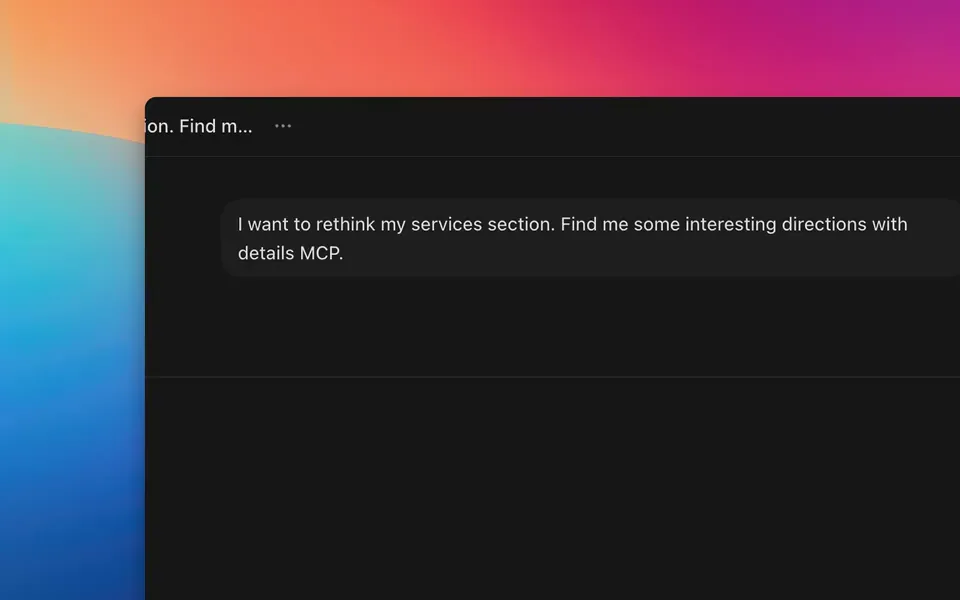
Explore the references together. Mix a layout from one, motion from another, or simply choose the direction that feels right.
Your AI understands how each reference works and can adapt those ideas to your own project.
Choose your client and we'll show you exactly how to connect it.
Run this once in a terminal to register Details for your user account.
claude mcp add details --scope user --transport http https://api.details.so/mcp Start Claude Code, enter the command below, then choose Details.
/mcp Choose Authenticate and sign in to your Details account in the browser.
Return to Claude Code and start searching Details.
In Cursor, open Settings → Tools & MCP and choose New MCP Server. Use global settings for every project, or project settings for one workspace.
Paste this configuration into your mcp.json file and save it.
{
  "mcpServers": {
    "details": {
      "url": "https://api.details.so/mcp"
    }
  }
} Back in Tools & MCP, find Details, choose Connect, and approve access in the browser.
Details is now available to Cursor in the scope you selected.
Run this once in a terminal to register the remote server.
codex mcp add details --url https://api.details.so/mcp Run the login command to open Details authorization in your browser.
codex mcp login details Sign in to Details, review the request, and choose Continue.
Return to Codex. Start a new session if it was already open during setup.
From the chat input, open the add menu, choose MCPs, then select Add MCP.
Name the connection Details and paste the remote server URL.
https://api.details.so/mcp Select OAuth when prompted, then sign in and approve Details access.
Details is now available from your v0 chat.
Open the integrations or MCP area in your AI client.
Create a remote HTTP MCP server named Details and paste this address.
https://api.details.so/mcp Use OAuth when available, then sign in and approve access to Details.
The Details tools should now appear in your client.
Handpicked from the most original, high-end design on the web. Now available directly to your AI.
See how it worksTell your AI what you’re working on and get relevant references directly from Details.
Explore the references together. Mix a layout from one, motion from another, or simply choose the direction that feels right.
Your AI understands how each reference works and can adapt those ideas to your own project.
Choose your client and we'll show you exactly how to connect it.
Run this once in a terminal to register Details for your user account.
claude mcp add details --scope user --transport http https://api.details.so/mcp Start Claude Code, enter the command below, then choose Details.
/mcp Choose Authenticate and sign in to your Details account in the browser.
Return to Claude Code and start searching Details.
In Cursor, open Settings → Tools & MCP and choose New MCP Server. Use global settings for every project, or project settings for one workspace.
Paste this configuration into your mcp.json file and save it.
{
  "mcpServers": {
    "details": {
      "url": "https://api.details.so/mcp"
    }
  }
} Back in Tools & MCP, find Details, choose Connect, and approve access in the browser.
Details is now available to Cursor in the scope you selected.
Run this once in a terminal to register the remote server.
codex mcp add details --url https://api.details.so/mcp Run the login command to open Details authorization in your browser.
codex mcp login details Sign in to Details, review the request, and choose Continue.
Return to Codex. Start a new session if it was already open during setup.
From the chat input, open the add menu, choose MCPs, then select Add MCP.
Name the connection Details and paste the remote server URL.
https://api.details.so/mcp Select OAuth when prompted, then sign in and approve Details access.
Details is now available from your v0 chat.
Open the integrations or MCP area in your AI client.
Create a remote HTTP MCP server named Details and paste this address.
https://api.details.so/mcp Use OAuth when available, then sign in and approve access to Details.
The Details tools should now appear in your client.
Give friends 10% off and unlock rewards as they join.
An active Pro, Max, or Lifetime plan is required to share this link.
Share your link
A friend joins
Your setup gets better
Share your unique link with friends. When someone joins Details through your link and subscribes to a paid plan, they count as a successful referral and move you closer to your next reward.
A referral counts when a new customer joins through your unique link and subscribes to a paid Details plan. Refunded, disputed, fraudulent, or otherwise reversed purchases don’t count. You can find the full eligibility rules in our Referral Program Terms.
Rewards unlock automatically as you reach each referral milestone. We’ll let you know whenever you’ve unlocked something new.
It depends on the reward. Details credit and Lifetime are applied directly to your account. For physical rewards, we’ll contact you to arrange delivery. Approved Setup Upgrade contributions are normally sent through PayPal, so you’ll need a PayPal account that can receive payments.
At 30 successful referrals, you unlock a $500 Setup Fund. Every 10 more successful referrals adds another $200 and unlocks your next Setup Upgrade request. There’s no limit to how much the fund can grow.
Anything that genuinely improves your creative setup. That could be a monitor, chair, laptop, tablet, camera, keyboard, software, or another tool that helps you do better work. See our Referral Program Terms for the full eligibility guidelines.
Choose something that improves your creative setup and submit an upgrade request. Tell us what you’re getting, what it costs, and how much you’d like to use from your Setup Fund. We’ll review it and contact you to arrange the contribution, normally through PayPal. Full requirements are covered in our Referral Program Terms.
No. You can submit one Setup Upgrade request at each 10-referral milestone. Anything you don’t use stays available and carries into the next milestone, but unused request opportunities don’t stack.
Nope. Once unlocked, your Setup Fund receives another $200 at every 10-referral milestone. There’s no final milestone, so you can keep referring and keep growing it.
Fixed rewards are generally provided as shown and can’t be exchanged for cash. If there’s an issue receiving a physical reward in your country, get in touch and we’ll see what we can do.
No. Self-referrals, duplicate accounts, fake accounts, or other attempts to artificially generate referrals aren’t eligible. See our Referral Program Terms for the complete rules.
You’ll find all eligibility requirements, reward conditions, Setup Fund guidelines, shipping rules, and other details in our Referral Program Terms .

Once it unlocks at 30 referrals, every 10 more adds another $200 and unlocks your next Setup Upgrade request. There’s no limit.